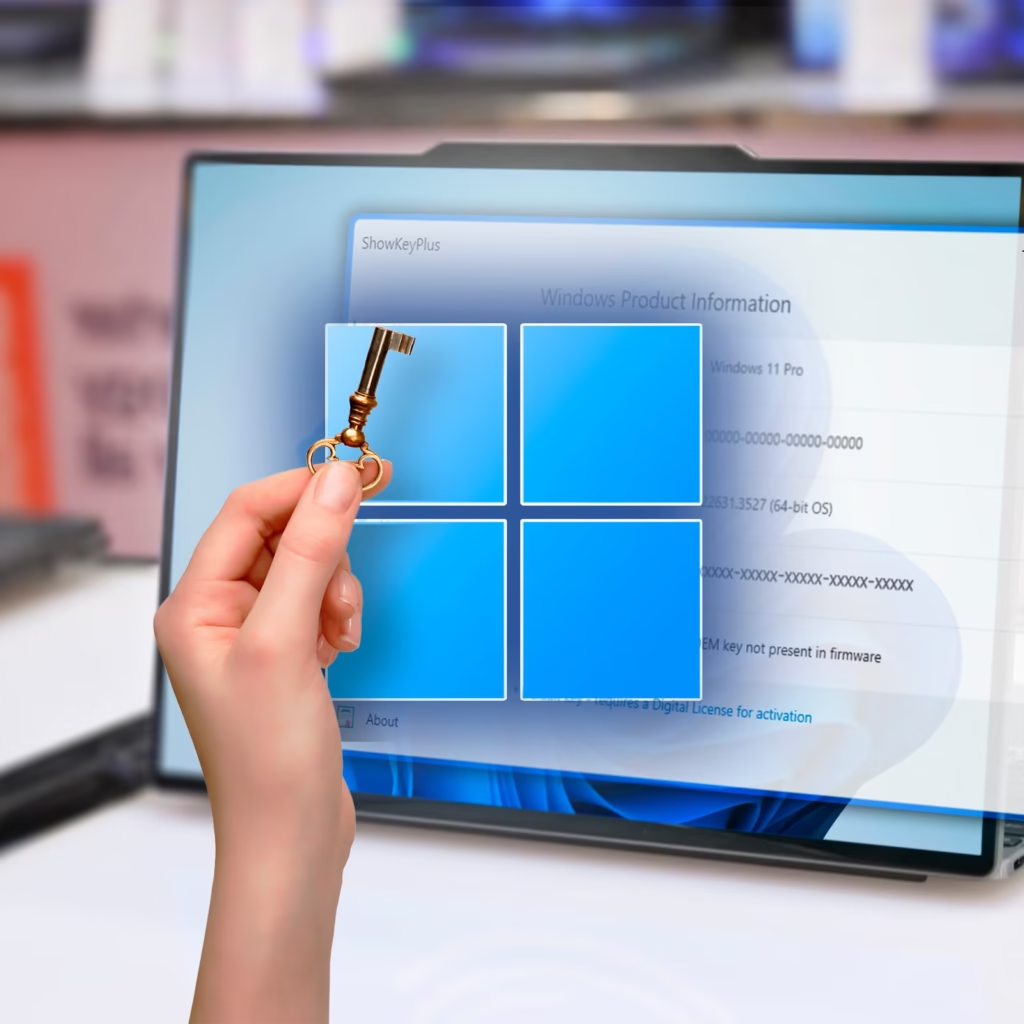
Windows 11 offers a refined interface, improved performance, and a secure environment, but activating it can sometimes be challenging. Whether you upgraded from a previous version or performed a clean installation, activation problems related to your windows 11 product key can disrupt the experience. Understanding the common causes, symptoms, and solutions can help you quickly resolve issues and ensure your system is fully activated for long-term use. This comprehensive guide explores the most frequent problems users encounter and offers practical solutions to get your device up and running without unnecessary frustration.
Understanding How Windows 11 Activation Works
Before attempting to fix activation problems, it’s important to understand how Windows 11 activation operates. When you install Windows, the system checks your windows 11 product key or digital license to verify authenticity. A digital license is automatically linked to your hardware and Microsoft account if you previously upgraded from a genuine copy of Windows 10. A traditional product key, on the other hand, must be manually entered during installation or afterward in the activation settings. Activation ensures that your copy of Windows is genuine and eligible for updates, security patches, and customer support. When something goes wrong, error codes appear, signaling where the issue lies.
Common Causes of Windows 11 Product Key Issues
Several factors may trigger activation failures. One of the most common reasons is using an incorrect or invalid windows 11 product key, which may result from purchasing through an unauthorized source or confusing home and pro editions. Another frequent cause is hardware changes, especially major upgrades such as replacing the motherboard, which may cause the digital license to stop recognizing your device. Network issues can also interrupt the activation process if your system cannot connect to Microsoft servers. Additionally, using a product key already in use on another device may lead to activation restrictions.
Incorrect or Invalid Product Key
One of the top reasons users struggle with activation is entering the wrong key. Windows 11 keys are specific to different editions, and a key for Windows 11 Home will not activate Windows 11 Pro. If you purchased your key online, especially from third-party sellers, ensure the source is reputable. Counterfeit or reused keys may initially seem valid but fail during activation checks. To resolve this issue, verify your edition in Settings and confirm that the key matches the version installed on your device.
Activation Server Connectivity Problems
Sometimes the problem isn’t your windows 11 product key but the connection to Microsoft’s activation servers. Server outages or local network restrictions may interrupt the process. If activation fails due to network issues, restart your router, disable any VPN, and check firewall settings. You can also attempt activation again after waiting a few hours, as temporary server problems often resolve themselves.
Hardware Changes Triggering Activation Errors
Windows licensing is tied to your device’s hardware profile. If you replace major components like the motherboard or CPU, Windows may no longer recognize your digital license. Fortunately, linking your license to your Microsoft account allows easier reactivation. Use the Activation Troubleshooter to reassign the license. This tool scans your hardware changes and lets you confirm that the device is yours.
Upgrade Issues from Windows 10 to Windows 11
Users upgrading from Windows 10 may experience activation errors if the previous version wasn’t properly activated. A digital license must be valid before upgrading. If your old system wasn’t activated, Windows 11 cannot retrieve a valid license. Ensure that your Windows 10 installation was genuine before starting the upgrade. If you already upgraded and now face problems, try entering your previous Windows 10 product key.
Product Key Already in Use
A windows 11 product key can only be used on one device unless it is a retail version that allows transfers. If you receive messages stating the key is already used on another device, contact Microsoft Support and request clarification or reactivation. If the key came from a third-party seller, this issue may indicate unauthorized reuse, and you may need to obtain a new license.
Activation Error Codes and Their Fixes
Windows displays specific error codes during activation failures. Each code explains the underlying problem. For example, error 0xC004F213 indicates the system can’t find a product key, often due to hardware replacements. Error 0x803FA067 usually means the wrong key was entered. Search the code in the activation menu and follow the recommended steps or use the Activation Troubleshooter for automated solutions.
Using the Activation Troubleshooter
The Activation Troubleshooter is one of the easiest ways to fix activation issues. Go to Settings, navigate to Activation, and select Troubleshoot. This tool detects problems, checks your digital license, and attempts automatic repairs. Use this option first before exploring more advanced methods, as many activation issues can be resolved without manual intervention.
Re-entering or Changing Your Product Key
In some cases, simply re-entering your windows 11 product key solves the problem, especially if it was mistyped or modified during installation. Go to Update & Security, select Activation, and click Change Product Key. Enter the correct key and allow the system to attempt activation again. Make sure you use the exact key format without extra spaces or mistaken characters.
Confirming License Type and Compatibility
Windows licenses come in different categories, such as OEM, Retail, and Volume. OEM keys are tied to the first device they’re installed on, meaning they cannot be transferred. Retail keys offer more flexibility and can move from one computer to another. Volume keys are generally for enterprise use and can produce errors when used on personal devices. Confirm your license type to avoid compatibility problems.
Contacting Microsoft Support for Assistance
If you have exhausted all options and your system still fails to activate, the next best step is to contact Microsoft Support. Provide your windows 11 product key and describe the issue. Support agents can check the validity of your license, reassign your digital key, or explain any restrictions affecting activation. This route is especially helpful when you suspect your key has been wrongly flagged or deactivated.
Preventing Future Product Key Problems
To avoid activation issues in the future, always purchase Windows keys from authorized sellers. Link your digital license to your Microsoft account to protect it during hardware changes. Keep a secure offline record of your key to prevent loss or confusion. When upgrading hardware, sign in with your Microsoft account and run the activation troubleshooter immediately to ensure a smooth transition.
Final Thoughts
Troubleshooting activation issues with Windows doesn’t have to be complicated. Most problems stem from incorrect keys, connectivity interruptions, hardware changes, or mismatches between license types and installed editions. With careful checking, the Activation Troubleshooter, and proper verification of your windows 11 product key, you can resolve most activation challenges quickly and enjoy a secure and fully functional Windows 11 experience.
